

How to Set or Change Your Wallet

This guide explains how to register a new wallet address or change your existing wallet in the PECpool mining panel. For security reasons, wallet changes require email confirmation. Follow the steps below to update your wallet safely.

Step 1: Log in and Go to Accounts

After logging in to your PECpool dashboard, navigate to the left sidebar menu and click on “Accounts”.
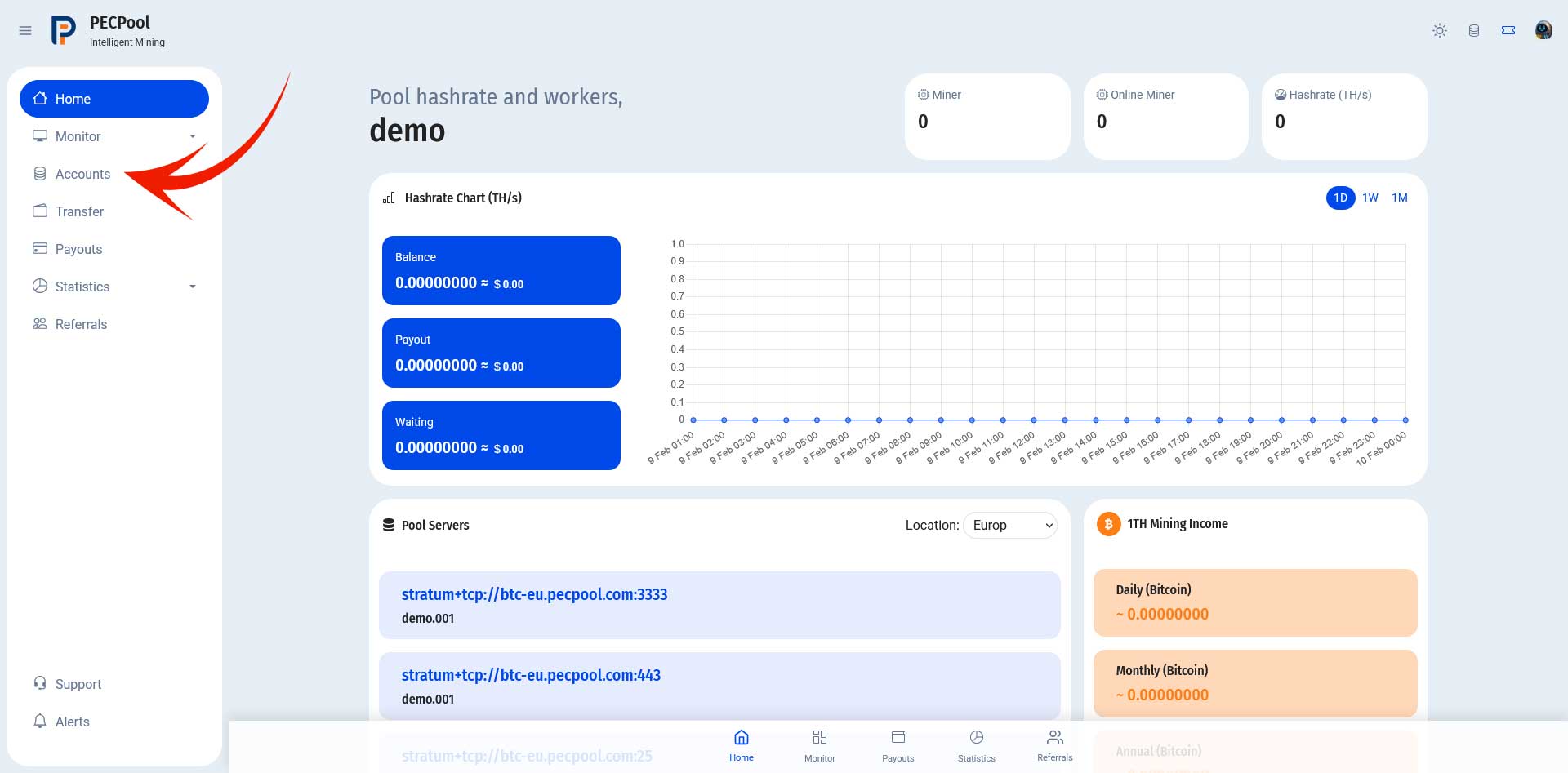
Dashboard - Accounts Menu

Step 2: Click on Edit Account

In the Accounts section, locate the account you want to update and click the “Edit Account” button in the Action column.
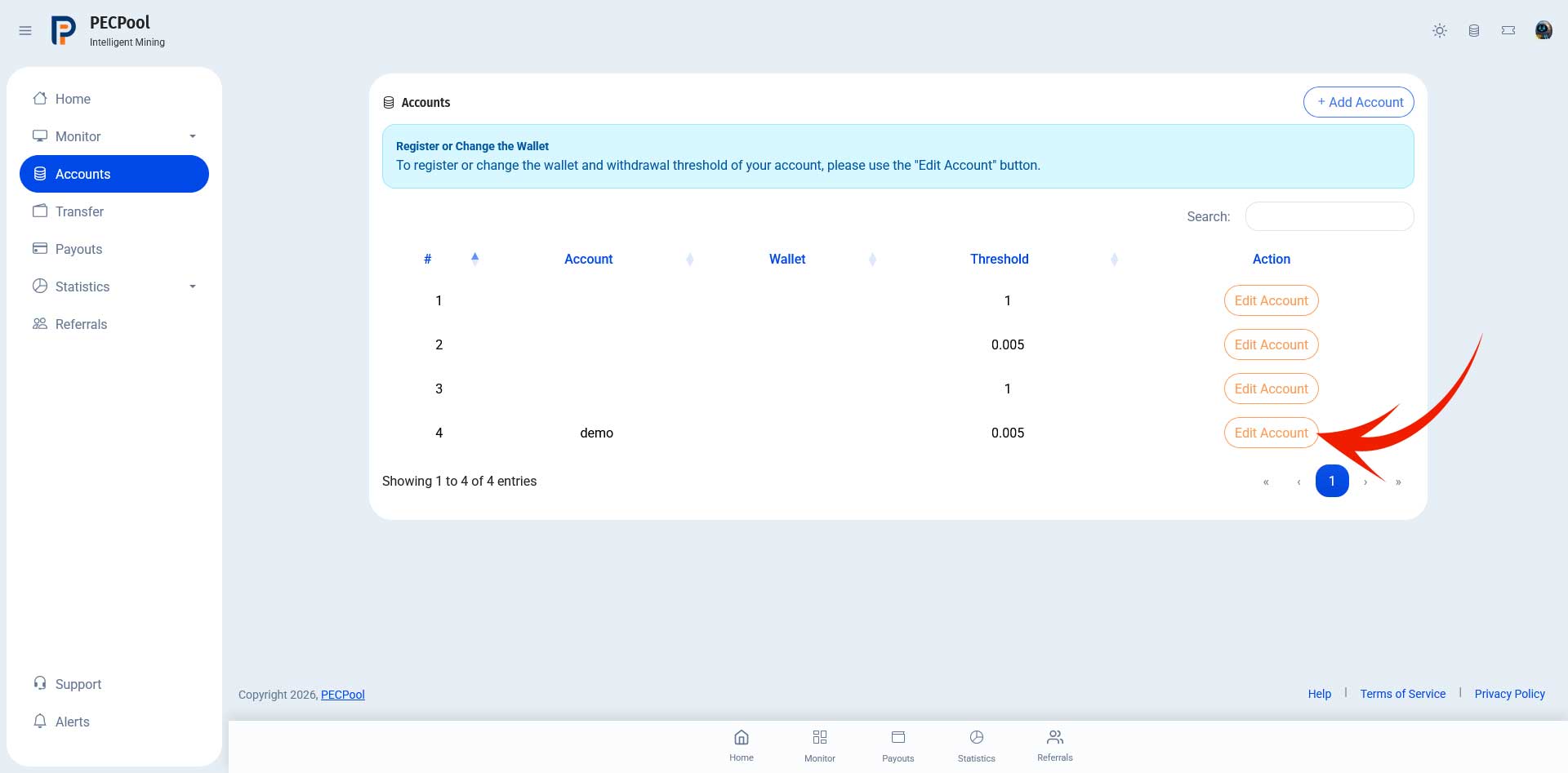
Edit Account Button

Step 3: Enter the New Wallet Address

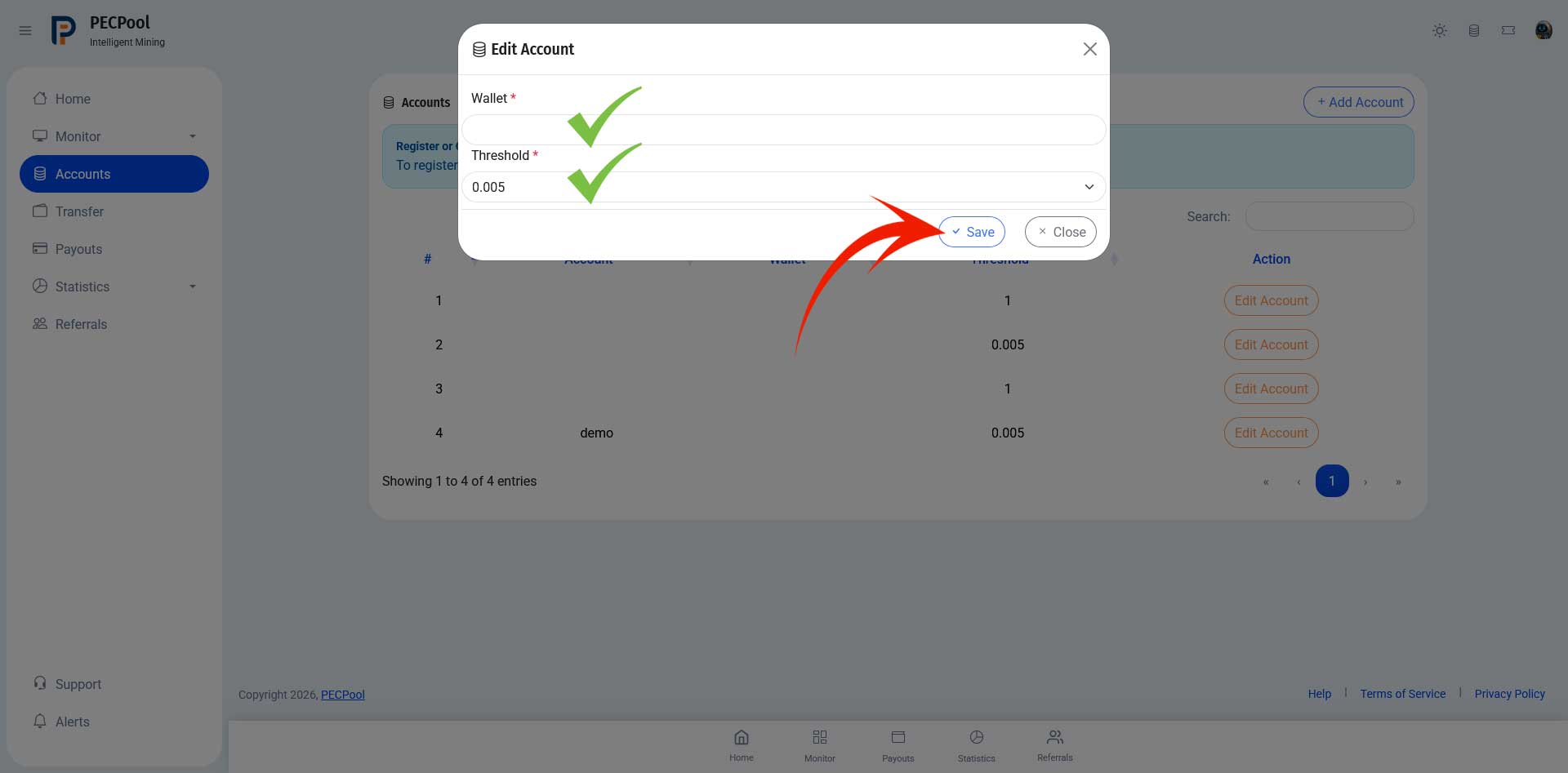
In the Edit Account popup window:

  • Enter your new Wallet Address
  • Select your desired Withdrawal Threshold
  • Click Save
Make sure your wallet address is correct before saving.

Wallet and Threshold Fields

Step 4: Confirmation Message

After clicking Save, a confirmation message will appear indicating that a verification email has been sent.

Click OK to continue.
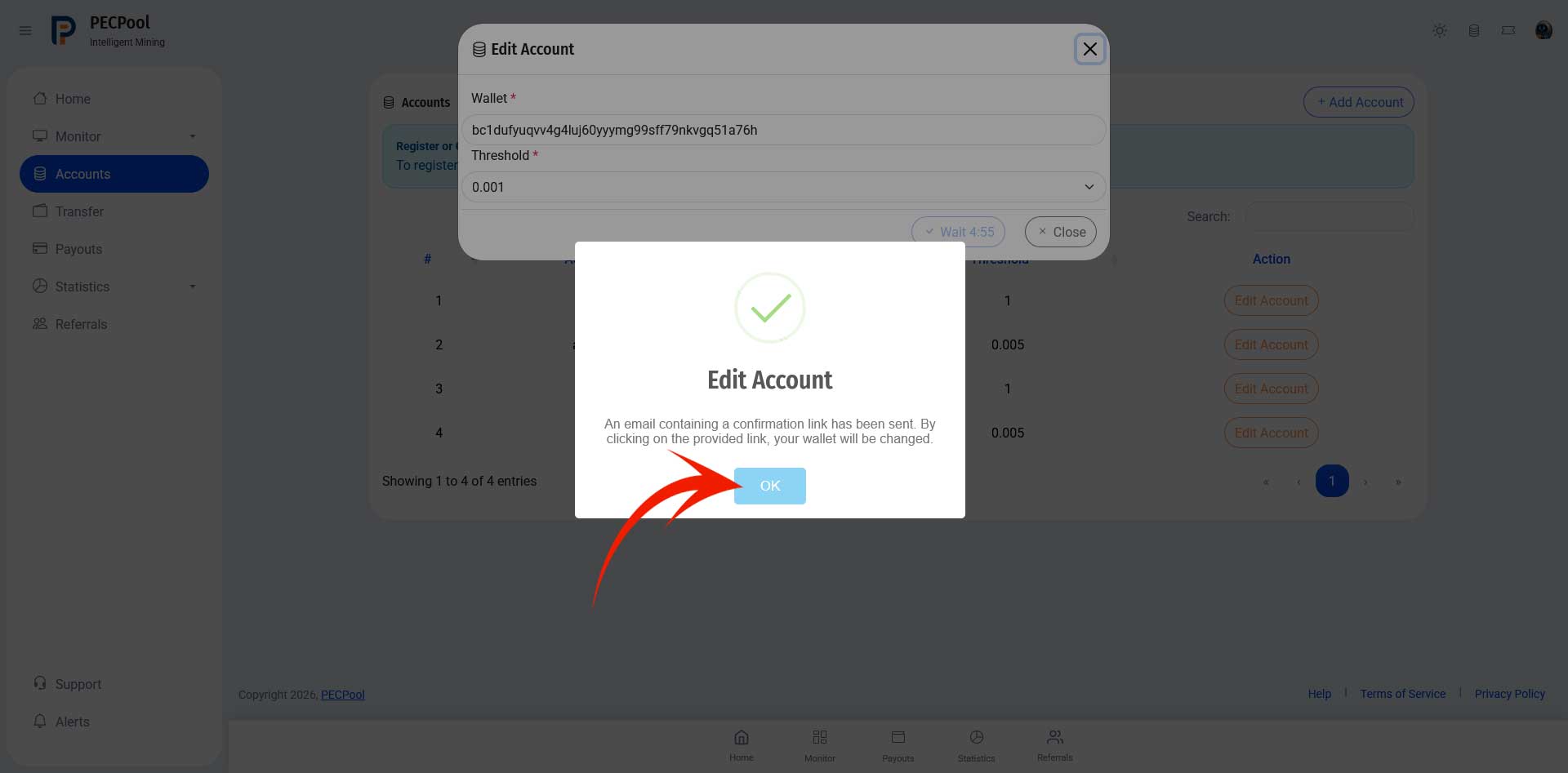
Confirmation Popup

Step 5: Confirm Through Email

Check your registered email inbox. Open the email titled “Wallet Change Request” and click the confirmation link provided.
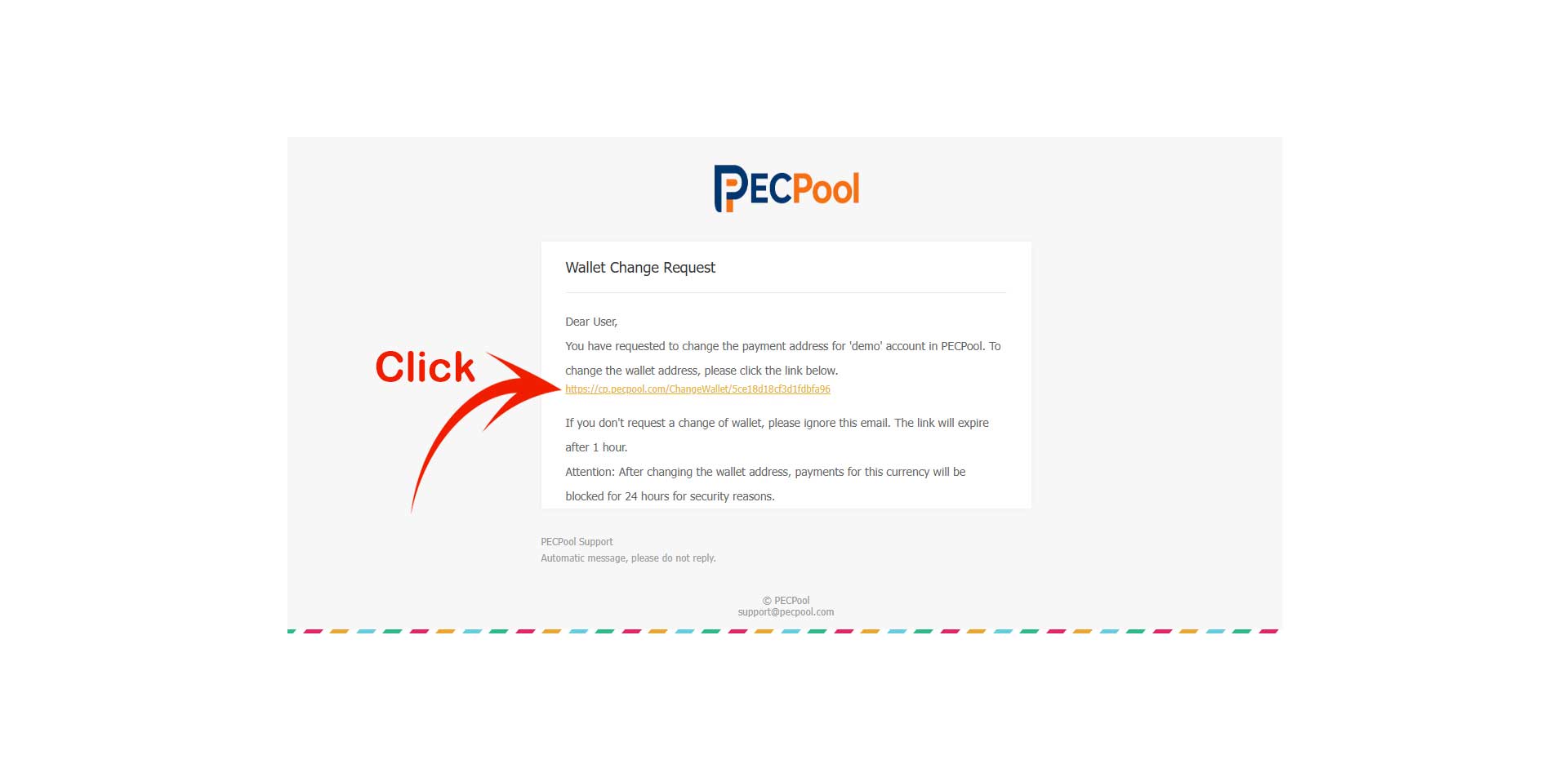
The confirmation link expires after 1 hour. If you did not request this change, ignore the email.

Email Confirmation Link

Step 6: Wallet Successfully Updated

After clicking the confirmation link, your wallet address will be updated in the Accounts section.
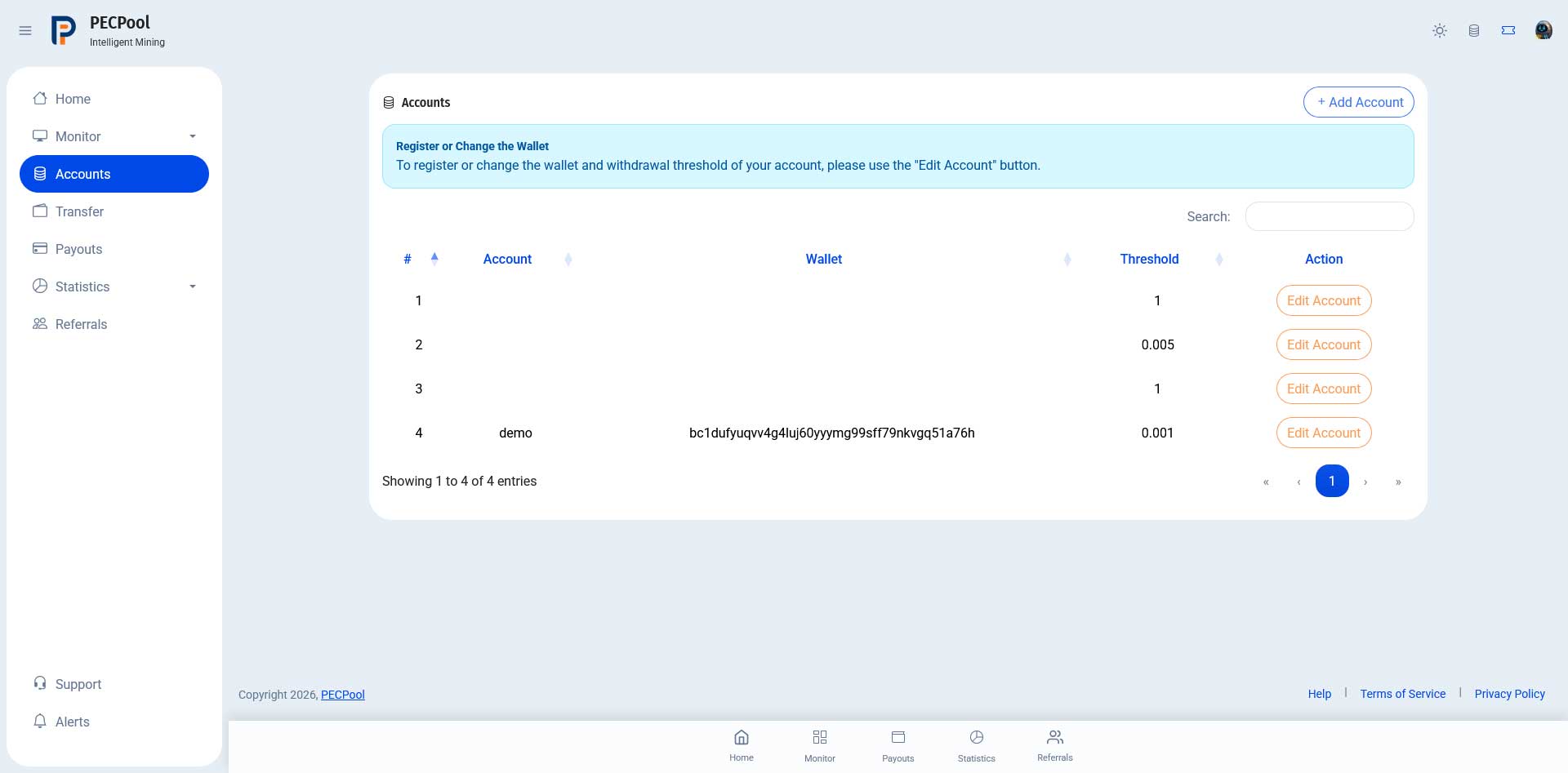
Withdrawals may be temporarily locked for 24 hours after changing the wallet address for security reasons.

Updated Wallet in Accounts

Important Security Notes

  • Always double-check your wallet address before saving.
  • Never share your login credentials.
  • Contact PECpool Support if you experience any issues.
How to Set or Change Your Wallet