

How to set or change your two-factor authentication (2FA) code

Two-Factor Authentication (2FA) adds an extra layer of security to your PECpool account. By enabling 2FA, you protect your account from unauthorized access even if someone knows your password.

Step 1: Open Your Profile Menu

After logging in to your PECpool dashboard, click on your profile icon in the top-right corner.
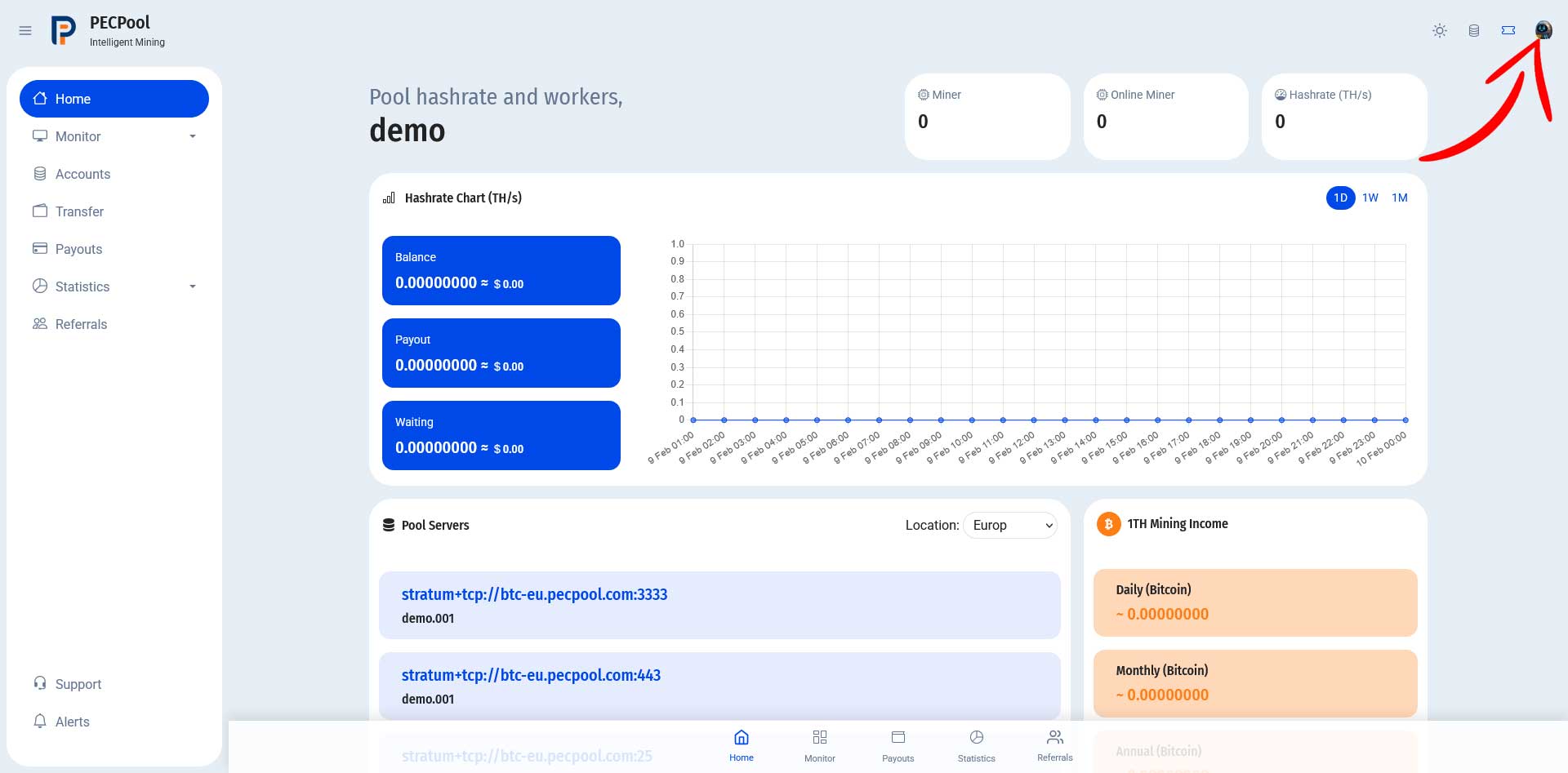
Profile icon highlighted

Step 2: Go to My Profile

From the dropdown menu, click on My Profile.
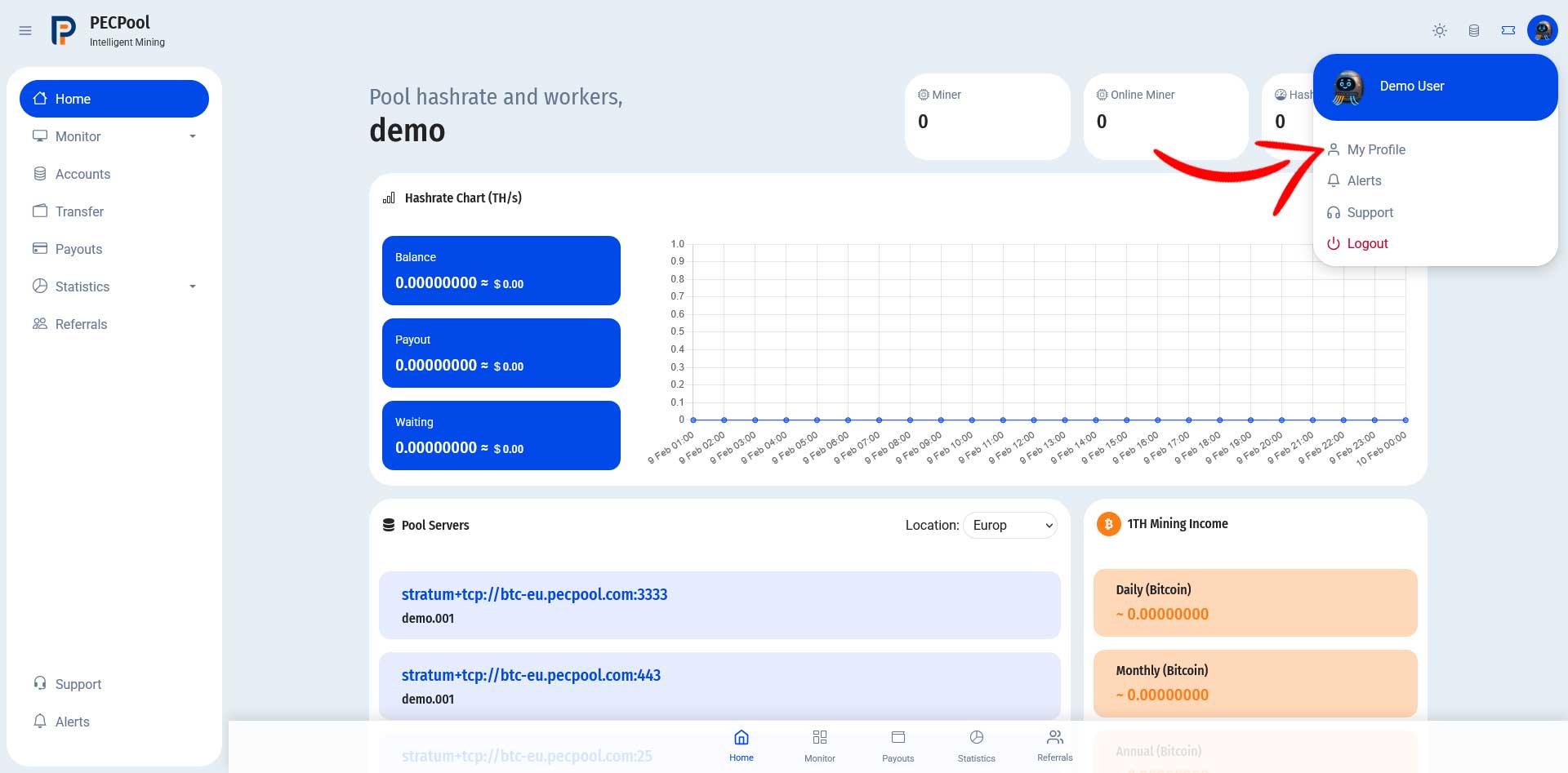
My Profile option selected

Step 3: Open Security Settings (2FA Authentication)

Inside your profile page, click on Security – 2FA Authentication from the left sidebar menu.
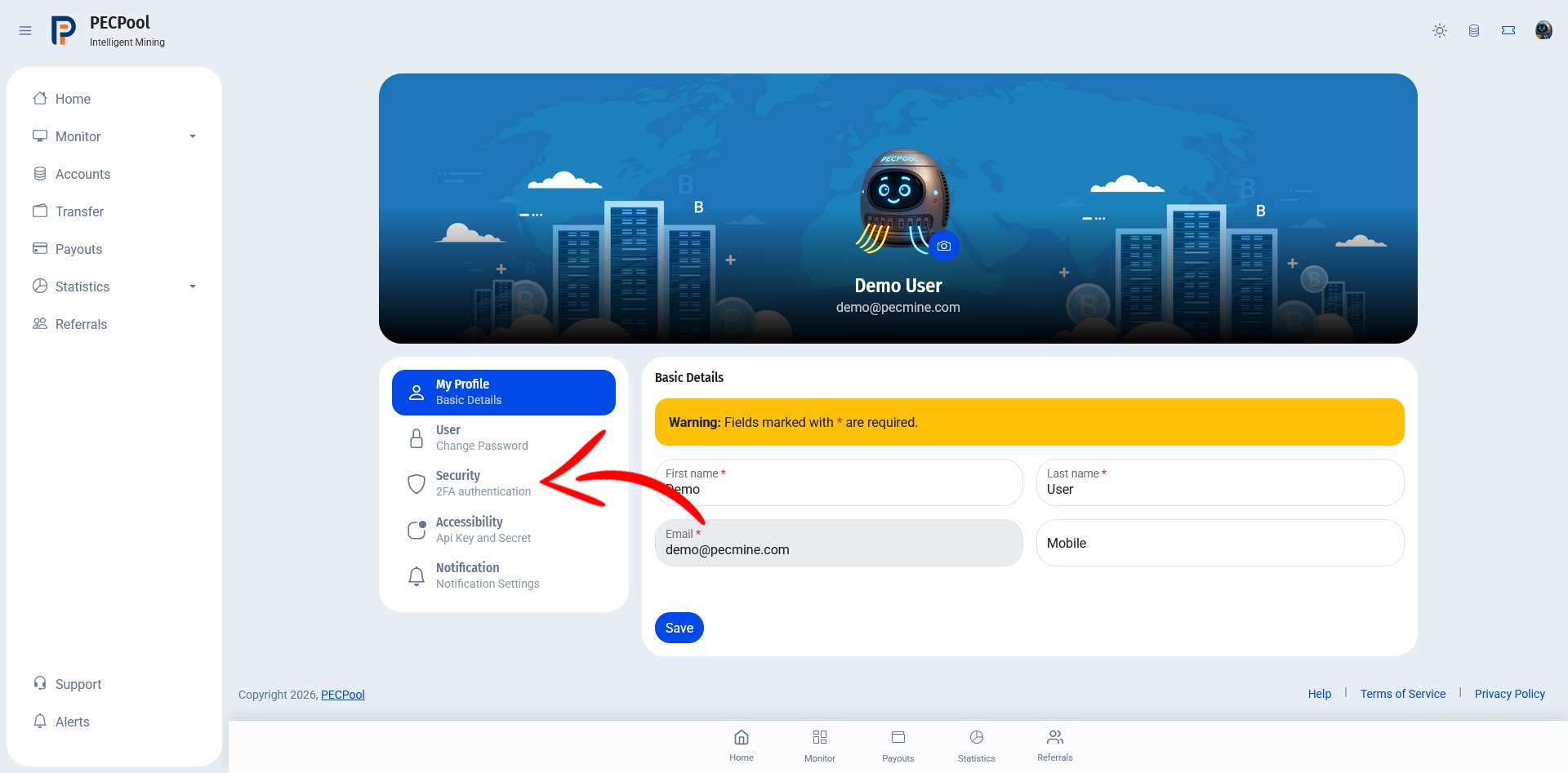
Security 2FA section highlighted

Step 4: Request a Verification Code

To enable or change your 2FA settings:
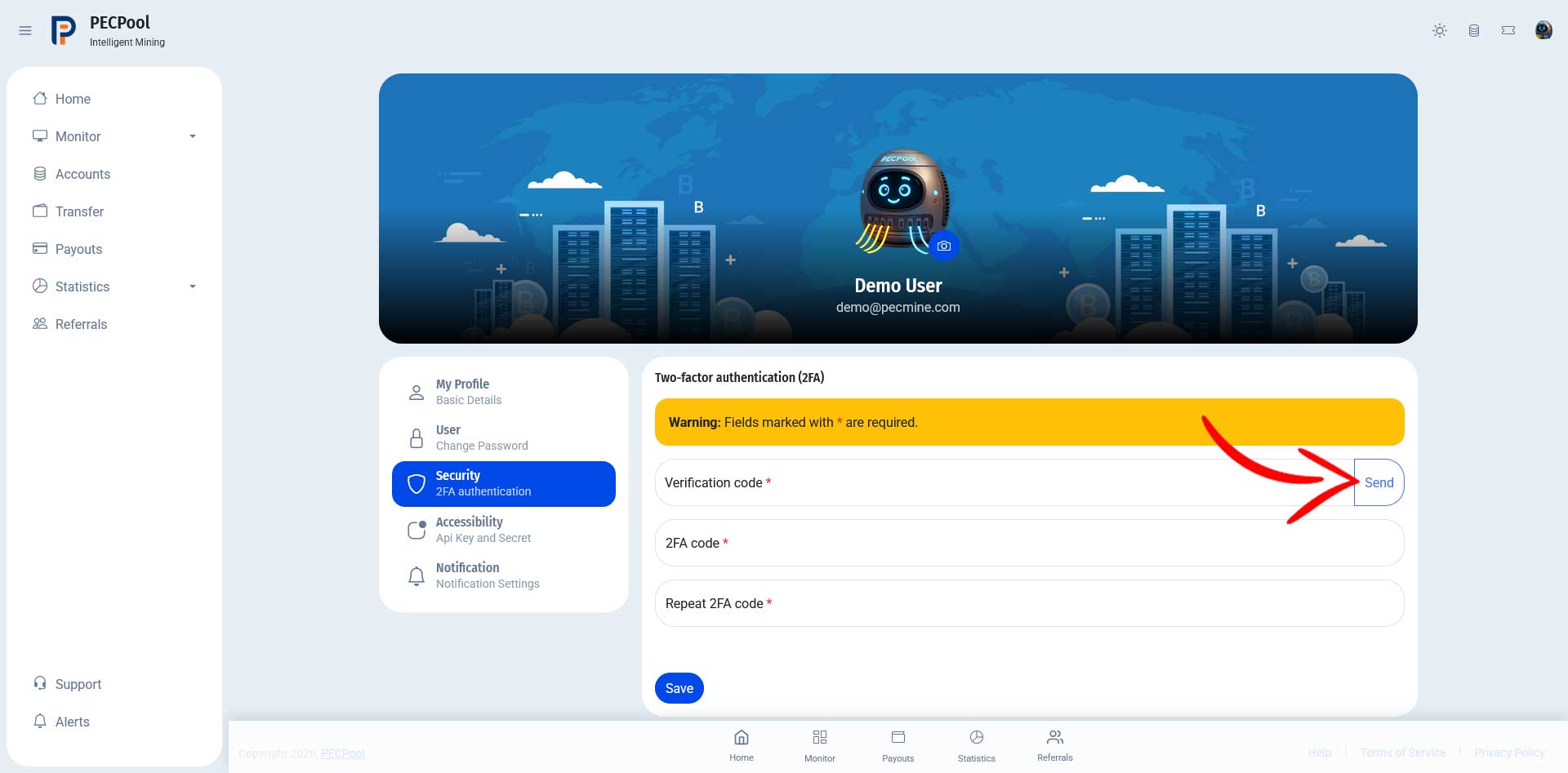
  • Click the Send button next to the Verification code field.
  • A verification code will be sent to your registered email address.

Send button highlighted

The verification code may expire after 30 minutes. If it expires, request a new one.

Step 5: Confirm the Message

After requesting the code, a confirmation message will appear indicating that the code has been sent successfully.

Click OK to continue.
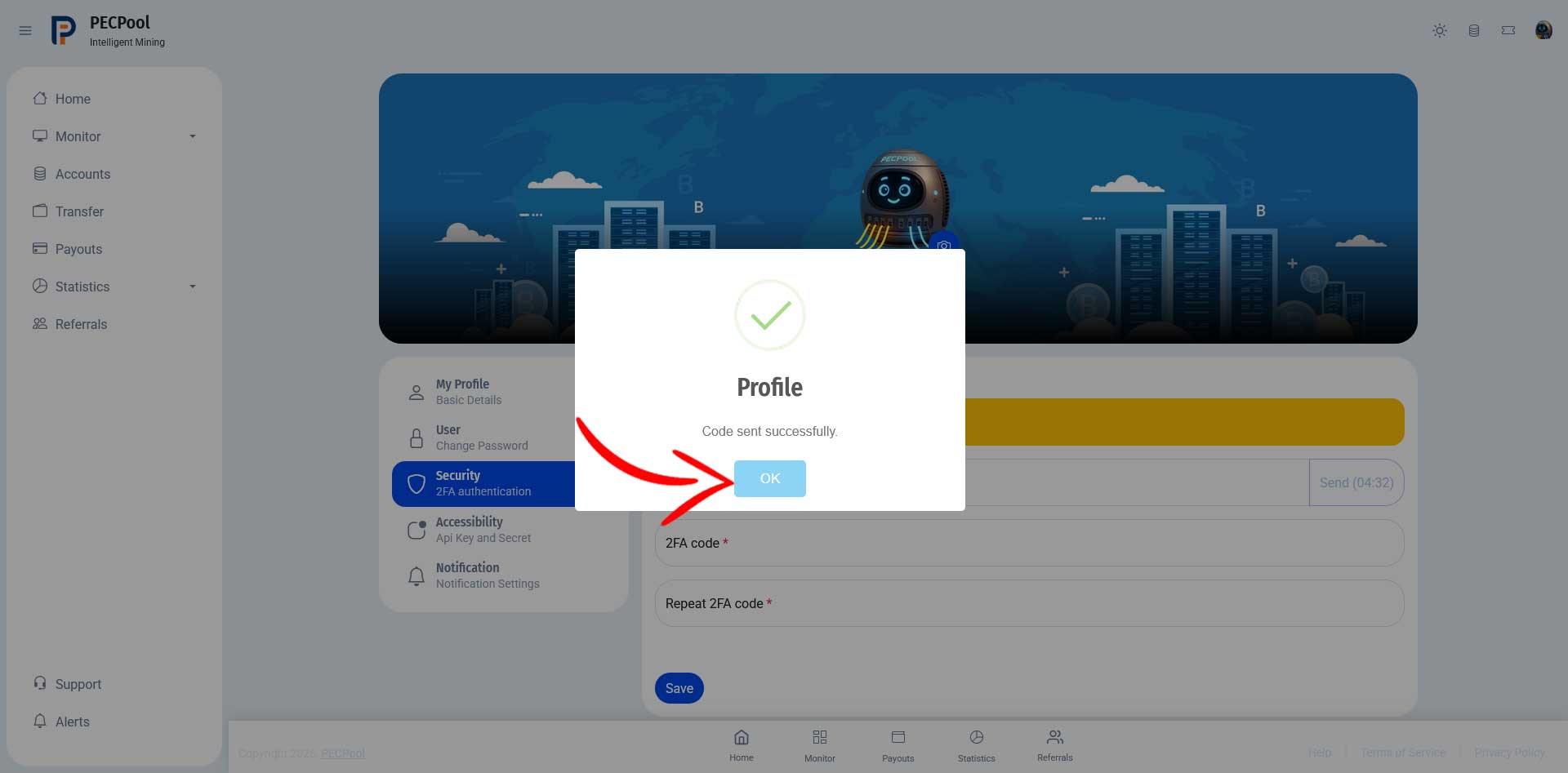
Code sent confirmation popup

Step 6: Enter the Verification Code and Your New 2FA Code

Check your inbox and copy the verification code from the email, then:
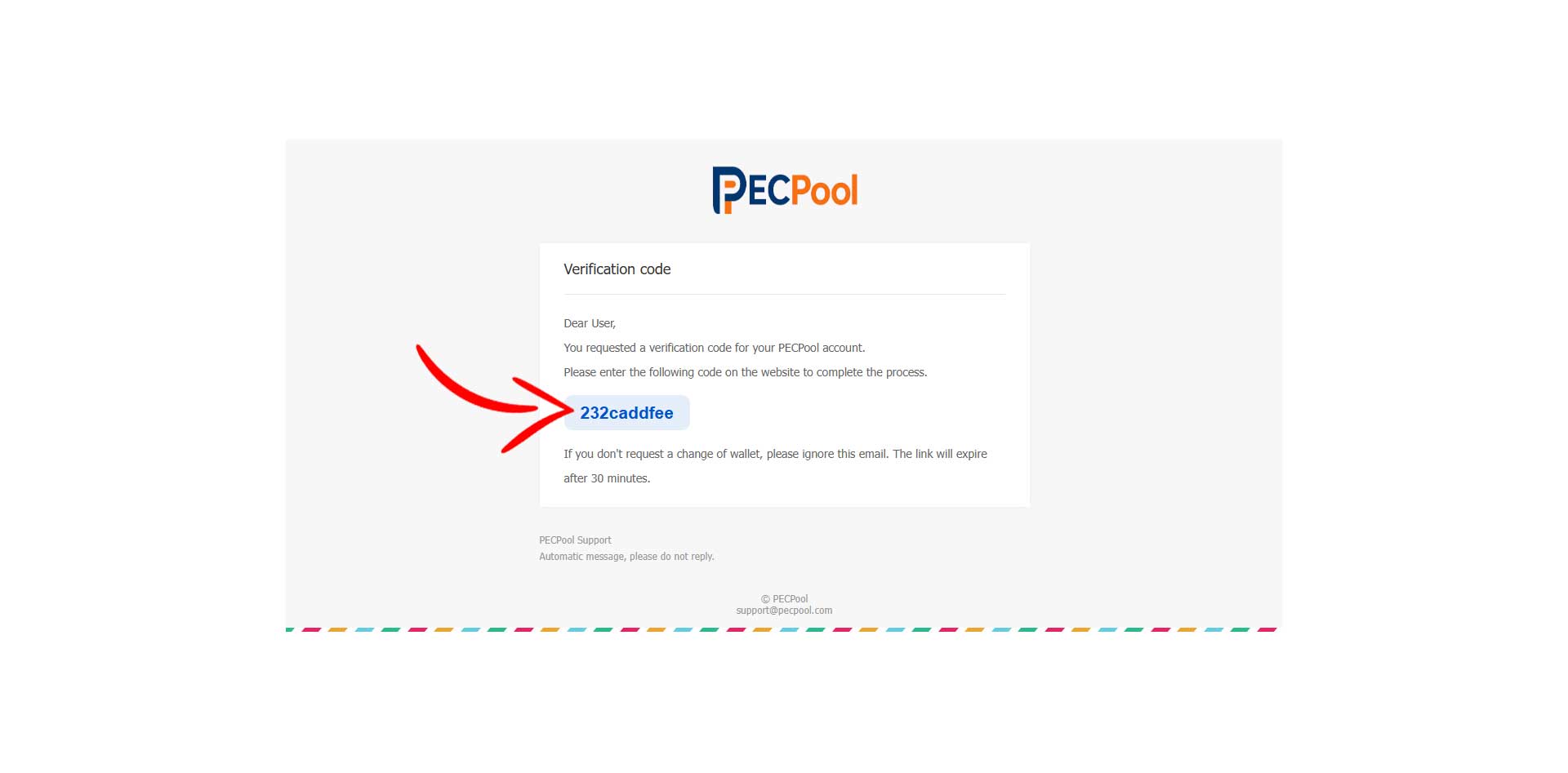
  • Paste the email code into Verification code
  • Enter your new 2FA code
  • Enter the same value again in Repeat 2FA code

2FA fields filled

Step 7: Save Your 2FA Settings

After entering all required fields, click Save to activate or update your 2FA security.
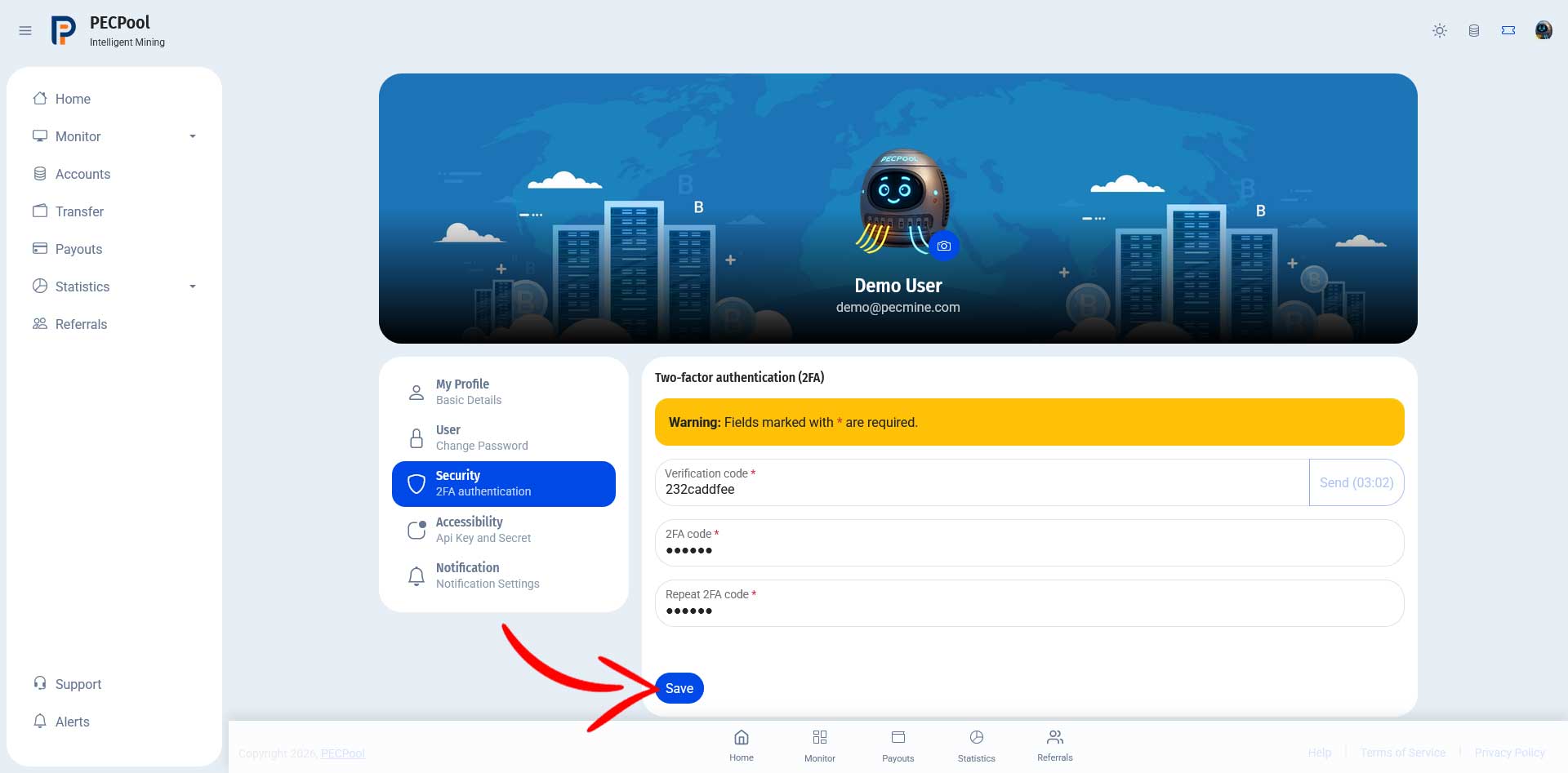
Save button highlighted

Important Security Notes

  • Never share your verification code or 2FA code with anyone.
  • If you did not request a verification code, change your password immediately.
How to set or change your two-factor authentication (2FA) code