


How to use the new panel

The new PECpool panel is designed to be faster, cleaner, and easier to navigate. This guide explains the key parts of the interface based on the numbered labels (1–6) shown on the dashboard.
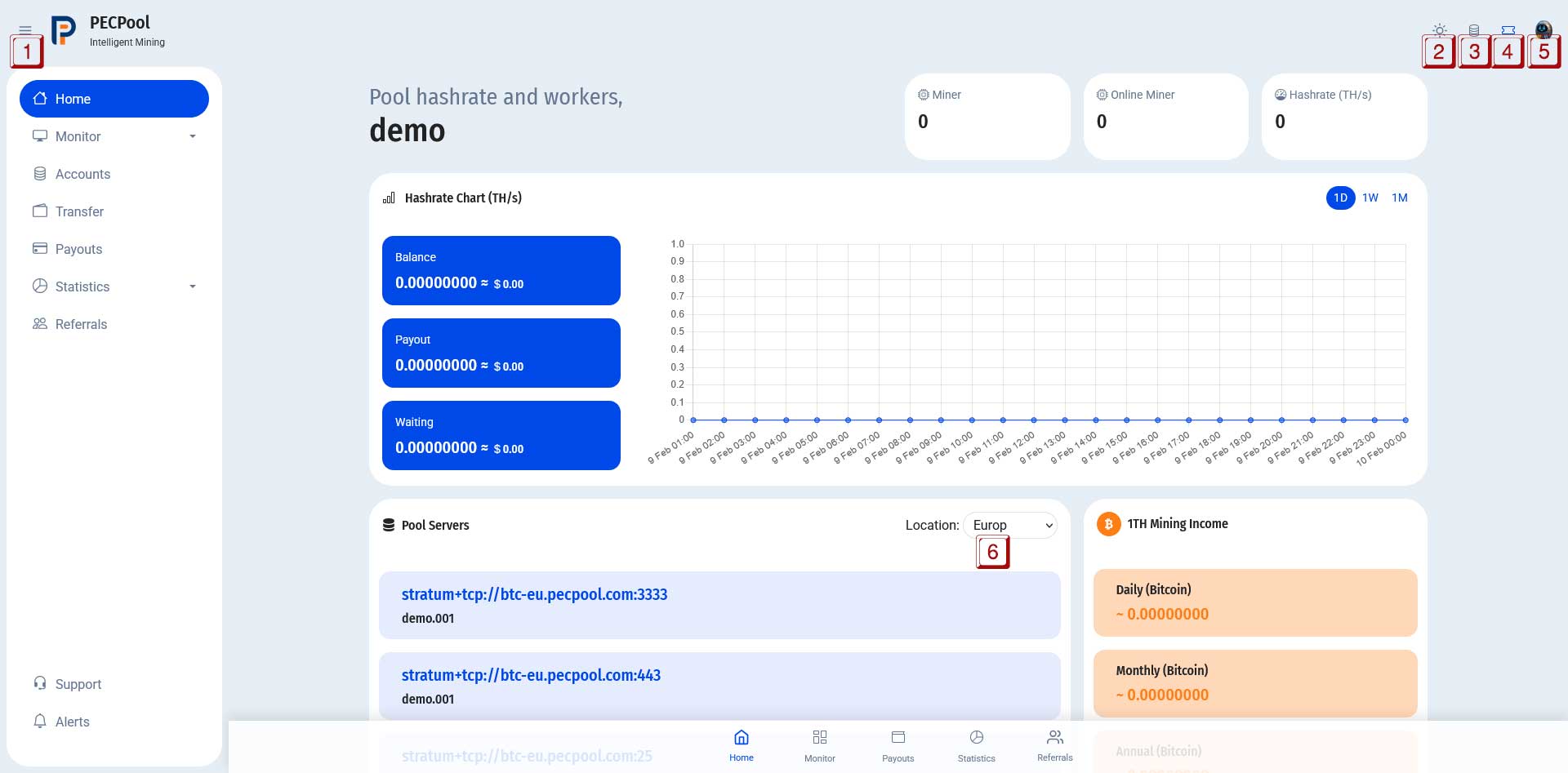
New PECpool Panel Overview with numbered labels

Quick Map (Numbers on the image):

  • 1. Panel main menu
  • 2. Light/Dark mode
  • 3. View and switch accounts
  • 4. View open support tickets
  • 5. User menu
  • 6. Switch location to view the best server for your area

1) Panel Main Menu

Use the main menu (left sidebar) to navigate across the panel. The most important sections are:

  • Home: Overview of your hashrate, earnings, and pool status.
  • Monitor: Check workers/miners status and performance.
  • Accounts: Manage wallet settings and withdrawal threshold.
  • Payouts: Review payout history and transaction details.
  • Statistics: Detailed charts and mining reports.
  • Referrals: Track referral performance and rewards.

2) Light / Dark Mode

Click the Light/Dark mode button to switch your panel theme. This is useful for comfortable viewing in bright environments or at night.

Tip: If you work long hours on the dashboard, Dark Mode can reduce eye strain.

3) View and Switch Accounts

Use the accounts switcher to view and move between different accounts in the panel. This helps if you manage multiple mining accounts or multiple sub-accounts.

  • Open the account list
  • Select the account you want
  • The dashboard data updates based on the selected account

4) View Open Support Tickets

Click the support tickets icon to quickly view your open (active) support requests. This helps you track replies and status updates without leaving the dashboard.

  • See your open tickets
  • Follow up on previous issues
  • Check ticket status (pending / answered / closed)

5) User Menu

The User Menu gives you quick access to personal settings and account features such as:

  • My Profile: Update personal details
  • Alerts: View important notifications
  • Support: Contact support
  • Logout: Sign out of your account

Security Tip: Enable 2FA to protect your account from unauthorized access.

6) Switch Location (Best Server for Your Area)

Use the location selector to choose the best server region for your area. Selecting a closer server can improve stability and reduce latency.

  • Select your region (example: Europe)
  • Copy the recommended stratum server address from the Pool Servers section
  • Use it in your miner configuration

Tip: If you notice unstable hashrate or frequent disconnects, try switching to a closer location.

How to use the new panel